Buy discounter-online.com ?
We are moving the project
discounter-online.com .
Are you interested in purchasing the domain
discounter-online.com ?
domain@kv-gmbh.de · 0541-91531010
Buy discounter-online.com ?
What causes the echoing sound in PC recording?
The echoing sound in PC recording is typically caused by feedback loops. This occurs when the audio output from the computer's speakers is picked up by the microphone and then re-amplified, creating a loop of sound. This can also happen if the microphone is too close to the speakers, causing the sound to bounce back and forth between the two. To prevent echoing, it is important to properly adjust the microphone and speaker settings, as well as use headphones to monitor the audio instead of relying on speakers. **
What causes the echoing sound in OBS streams?
The echoing sound in OBS streams is typically caused by audio feedback. This occurs when the audio from your microphone or speakers is picked up by your microphone again, creating a loop of sound. To prevent echoing, you can try adjusting the volume levels of your microphone and speakers, using headphones to monitor your audio, or using noise suppression filters in OBS. Additionally, make sure that your microphone is not too close to your speakers to reduce the chances of feedback. **

Similar search terms for Echoing
Top-Angebote
Products related to Echoing:
-
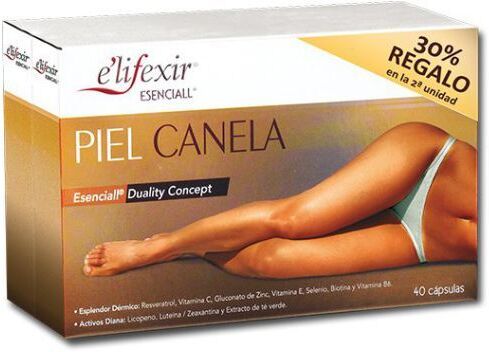
E'lifexir Essential Cinnamon Skin Savings PackageNutrition and Supplements Special supplements E'lifexir Essential Cinnamon Skin Savings Package Nutricosmetic sunscreen to protect skin and eyes. Nutritional complement that prepares the skin for exposure to the sun, promotes a more intense and long-lasting tan and strengthens the skin's defences. Provides antioxidant properties and protects the skin from UV radiation. Results: - Uniform and luminous tan - Eye protection - More elastic and protected skin How to use: Take one capsule a day.33,31 £*Shipping: 3,99 £Secure redirect to the provider
-
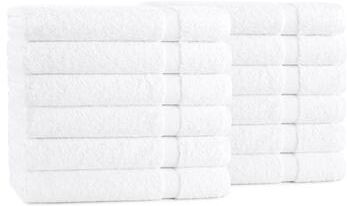
Arkwright Home Admiral Bath Towels - Economical White Cotton/Poly Blend - 12 PackOur foundational institutional towel collection, the Admiral, is a value line of bath towels, bath mats, and pool towels made with an 86/14 cotton/polyester blend yarn.119,99 $*Shipping: 0,00 $Secure redirect to the provider
-
Scholastic Bargain Book Box Grades K-1 (100 Books)A box of books at the best price! Take advantage of inventory conditions that leave some of our books without a permanent home. The list of titles in this collection will change depending on availability. A super way to save money and send every...235,00 $*Shipping: 0,00 $Secure redirect to the provider


-
What causes the echoing sound during OBS streaming?
The echoing sound during OBS streaming is typically caused by audio feedback. This occurs when the audio from the stream is picked up by the microphone and then played back through the stream again, creating a loop of sound. This can happen if the microphone is too close to the speakers, or if the audio output from the stream is being picked up by the microphone. To fix this issue, it's important to adjust the microphone and speaker placement, and to use headphones to monitor the audio instead of relying on speakers. Additionally, adjusting the audio settings in OBS to minimize feedback can also help reduce echoing. **
-
Why is the laptop sound echoing since the update?
The laptop sound may be echoing since the update due to changes in the audio settings or drivers. The update may have altered the sound configuration, causing the sound to bounce off surfaces and create an echo effect. It is recommended to check the audio settings, update the sound drivers, or adjust the volume levels to potentially resolve the echoing issue. **
-
Why do Teamspeak partners always sound like they are echoing?
Teamspeak partners may sound like they are echoing due to a phenomenon called audio feedback. This occurs when the sound from their speakers is picked up by their microphone and transmitted back to you, creating a loop of sound. This can happen if their microphone sensitivity is too high or if their speakers are too loud. Adjusting these settings or using headphones can help reduce or eliminate the echoing effect. **
-
What can I do if the microphone is echoing during the recording?
If the microphone is echoing during the recording, there are a few things you can try to fix the issue. First, try adjusting the microphone's position and distance from the sound source to minimize reflections and echoes. You can also try using a pop filter or foam windscreen to reduce unwanted noise and echoes. Additionally, check the recording environment for any hard surfaces that may be causing the echo and consider adding acoustic treatment to the room. Finally, make sure to check the microphone and recording equipment for any technical issues that may be contributing to the echoing. **


Where do I change the settings so that the Windows Media Player stops echoing strangely?
To adjust the settings in Windows Media Player to stop echoing, you can try adjusting the audio settings within the program. Click on the "Tools" menu in Windows Media Player, then select "Options." In the Options menu, go to the "Devices" tab and select your audio device. Click on "Properties" and then adjust the audio settings such as volume levels, enhancements, and speaker configuration to see if that helps reduce the echoing issue. Additionally, make sure your computer's audio drivers are up to date as outdated drivers can sometimes cause audio issues. **
What can I do to fix the echoing and distorted sound in the OBS Studio stream?
To fix echoing and distorted sound in OBS Studio stream, you can try the following steps: 1. Check your audio settings in OBS Studio and make sure that the correct audio devices are selected for both input and output. 2. Adjust the audio levels and make sure that the input volume is not too high, which can cause distortion. 3. Use a noise gate filter to reduce background noise and echo in your audio. 4. If you are using a microphone, make sure it is positioned correctly and is not too close to other sound sources that could cause echoing. By following these steps, you should be able to improve the audio quality of your OBS Studio stream and reduce echoing and distortion. **
Top-Angebote
Products related to Echoing:
-
E'lifexir Essential Cinnamon Skin Savings PackageNutrition and Supplements Special supplements E'lifexir Essential Cinnamon Skin Savings Package Nutricosmetic sunscreen to protect skin and eyes. Nutritional complement that prepares the skin for exposure to the sun, promotes a more intense and long-lasting tan and strengthens the skin's defences. Provides antioxidant properties and protects the skin from UV radiation. Results: - Uniform and luminous tan - Eye protection - More elastic and protected skin How to use: Take one capsule a day.33,31 £*Shipping: 3,99 £Secure redirect to the provider
-
Arkwright Home Admiral Bath Towels - Economical White Cotton/Poly Blend - 12 PackOur foundational institutional towel collection, the Admiral, is a value line of bath towels, bath mats, and pool towels made with an 86/14 cotton/polyester blend yarn.119,99 $*Shipping: 0,00 $Secure redirect to the provider
-
What causes the echoing sound in PC recording?
The echoing sound in PC recording is typically caused by feedback loops. This occurs when the audio output from the computer's speakers is picked up by the microphone and then re-amplified, creating a loop of sound. This can also happen if the microphone is too close to the speakers, causing the sound to bounce back and forth between the two. To prevent echoing, it is important to properly adjust the microphone and speaker settings, as well as use headphones to monitor the audio instead of relying on speakers. **
-
What causes the echoing sound in OBS streams?
The echoing sound in OBS streams is typically caused by audio feedback. This occurs when the audio from your microphone or speakers is picked up by your microphone again, creating a loop of sound. To prevent echoing, you can try adjusting the volume levels of your microphone and speakers, using headphones to monitor your audio, or using noise suppression filters in OBS. Additionally, make sure that your microphone is not too close to your speakers to reduce the chances of feedback. **
-
What causes the echoing sound during OBS streaming?
The echoing sound during OBS streaming is typically caused by audio feedback. This occurs when the audio from the stream is picked up by the microphone and then played back through the stream again, creating a loop of sound. This can happen if the microphone is too close to the speakers, or if the audio output from the stream is being picked up by the microphone. To fix this issue, it's important to adjust the microphone and speaker placement, and to use headphones to monitor the audio instead of relying on speakers. Additionally, adjusting the audio settings in OBS to minimize feedback can also help reduce echoing. **
-
Why is the laptop sound echoing since the update?
The laptop sound may be echoing since the update due to changes in the audio settings or drivers. The update may have altered the sound configuration, causing the sound to bounce off surfaces and create an echo effect. It is recommended to check the audio settings, update the sound drivers, or adjust the volume levels to potentially resolve the echoing issue. **
Similar search terms for Echoing
-
Scholastic Bargain Book Box Grades K-1 (100 Books)A box of books at the best price! Take advantage of inventory conditions that leave some of our books without a permanent home. The list of titles in this collection will change depending on availability. A super way to save money and send every...235,00 $*Shipping: 0,00 $Secure redirect to the provider
-
The Rose Bargain Series 2 Books Collection Set by Sasha Peyton Smith - FictionTitles in This Set:. The Rose Bargain. The Thorn Queen[Hardcover]. Condition:BRAND NEW. Format:Mixedlot. ISBN:9789124022310. Overview:. The Rose Bargain Series brings two immersive romantasy novels from Sasha Peyton Smith into one irresistible collection. The Rose Bargain (Book 1) ladles readers into a London of velvet balls, dangerous bargains, and fae-driven intrigue. Set in 1848, England is ruled by an immortal fae queen who grants one chance to bargain for a deepest desire. Ivy Benton signs her name in blood to enter a competition for Prince Bram’s hand, navigating society’s expectations, rivalries, and a dangerous attraction to Bram’s enigmatic brother, Emmett. The blend of lush, historically tinged detail with magical politics and razor-sharp romance creates a page-turning experience for fans of romantasy and YA fantasy. The Thorn Queen (Book 2) continues the journey, widening the world and heightening the danger while preserving the distinctive voice that defined the first title. Together, this two-book collection offers a complete reading arc in one premium package—perfect for readers who crave sweeping romance, clever world-building, and a touch of enchantment in their fiction.. What Makes This Collection Special:. This two-book set is built for readers who want a full romantasy journey without juggling multiple volumes. Both titles share a lyrical, period-rooted atmosphere and a London-bright backdrop where courtly intrigue meets magical bargains. The Rose Bargain introduces a heroically witty heroine navigating debut season and dangerous love triangles; The Thorn Queen deepens the magic, politics, and emotional stakes, delivering a satisfying arc in a single, collectible package. For gift buyers and collectors, the matched design and cohesive tone provide instant shelf appeal and a ready-made reading stack for weekend binge sessions. Sasha Peyton Smith’s distinctive voice, backed by her status as a New York Times bestselling author, anchors an escapist fantasy with emotional honesty, making this set feel premium, complete, and highly desirable.. Books Included in This Collection:. The Rose Bargain. The Rose Bargain sweeps readers into a glittering, perilous London of 1848 where ambition and desire collide. Ivy Benton is poised for debut season, a heroine whose wit and resolve drive her through a web of social pressure, rivalries, and risk-taking romance. The tale pivots around a perilous bargain at the heart of the fae-ruled court, weaving political tension with intimate moments that sting and then soothe. Smith’s voice blends lush historical texture with modern sensitivity, delivering a romance that feels both relatable and fantastical, with vivid characters and an atmosphere that lingers long after the final page.. The Thorn Queen. The Thorn Queen is the companion title in this two-book collection, continuing the romantasy journey with the same lush setting and heightened stakes. Details of the plot aren’t listed here, but readers...18,99 £*Shipping: 2,99 £Secure redirect to the provider
-
Bargain Houses Calder Heavy Duty Clear Plastic Carpet Protector Rectangle 68 x 762cmIdeal for year-round domestic or commercial use, ideal for the protection of high traffic areas of carpet, also suitable for lining car boots. Made from 100% vinyl this mat is waterproof, rot-proof and easy to clean. Brand Name: Bargain Houses. Mat Size: Rectangle 68 x 762cm44,99 £*Shipping: 4,99 £Secure redirect to the provider
-
Why do Teamspeak partners always sound like they are echoing?
Teamspeak partners may sound like they are echoing due to a phenomenon called audio feedback. This occurs when the sound from their speakers is picked up by their microphone and transmitted back to you, creating a loop of sound. This can happen if their microphone sensitivity is too high or if their speakers are too loud. Adjusting these settings or using headphones can help reduce or eliminate the echoing effect. **
-
What can I do if the microphone is echoing during the recording?
If the microphone is echoing during the recording, there are a few things you can try to fix the issue. First, try adjusting the microphone's position and distance from the sound source to minimize reflections and echoes. You can also try using a pop filter or foam windscreen to reduce unwanted noise and echoes. Additionally, check the recording environment for any hard surfaces that may be causing the echo and consider adding acoustic treatment to the room. Finally, make sure to check the microphone and recording equipment for any technical issues that may be contributing to the echoing. **
-
Where do I change the settings so that the Windows Media Player stops echoing strangely?
To adjust the settings in Windows Media Player to stop echoing, you can try adjusting the audio settings within the program. Click on the "Tools" menu in Windows Media Player, then select "Options." In the Options menu, go to the "Devices" tab and select your audio device. Click on "Properties" and then adjust the audio settings such as volume levels, enhancements, and speaker configuration to see if that helps reduce the echoing issue. Additionally, make sure your computer's audio drivers are up to date as outdated drivers can sometimes cause audio issues. **
-
What can I do to fix the echoing and distorted sound in the OBS Studio stream?
To fix echoing and distorted sound in OBS Studio stream, you can try the following steps: 1. Check your audio settings in OBS Studio and make sure that the correct audio devices are selected for both input and output. 2. Adjust the audio levels and make sure that the input volume is not too high, which can cause distortion. 3. Use a noise gate filter to reduce background noise and echo in your audio. 4. If you are using a microphone, make sure it is positioned correctly and is not too close to other sound sources that could cause echoing. By following these steps, you should be able to improve the audio quality of your OBS Studio stream and reduce echoing and distortion. **
* All prices are inclusive of VAT and, if applicable, plus shipping costs. The offer information is based on the details provided by the respective shop and is updated through automated processes. Real-time updates do not occur, so deviations can occur in individual cases. ** Note: Parts of this content were created by AI.